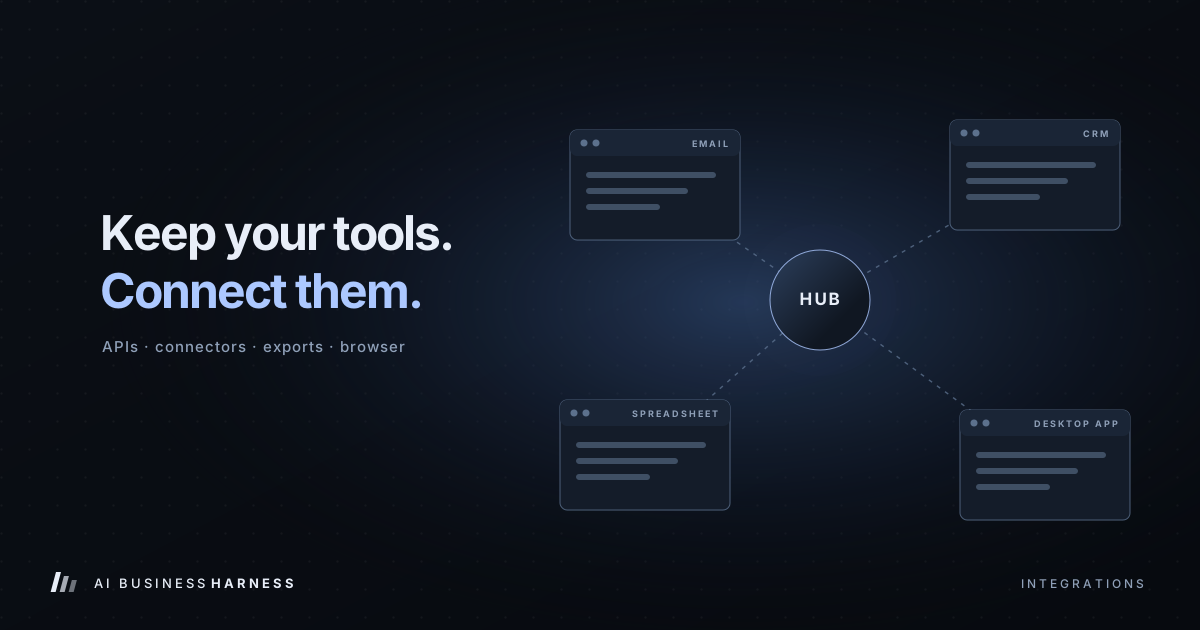
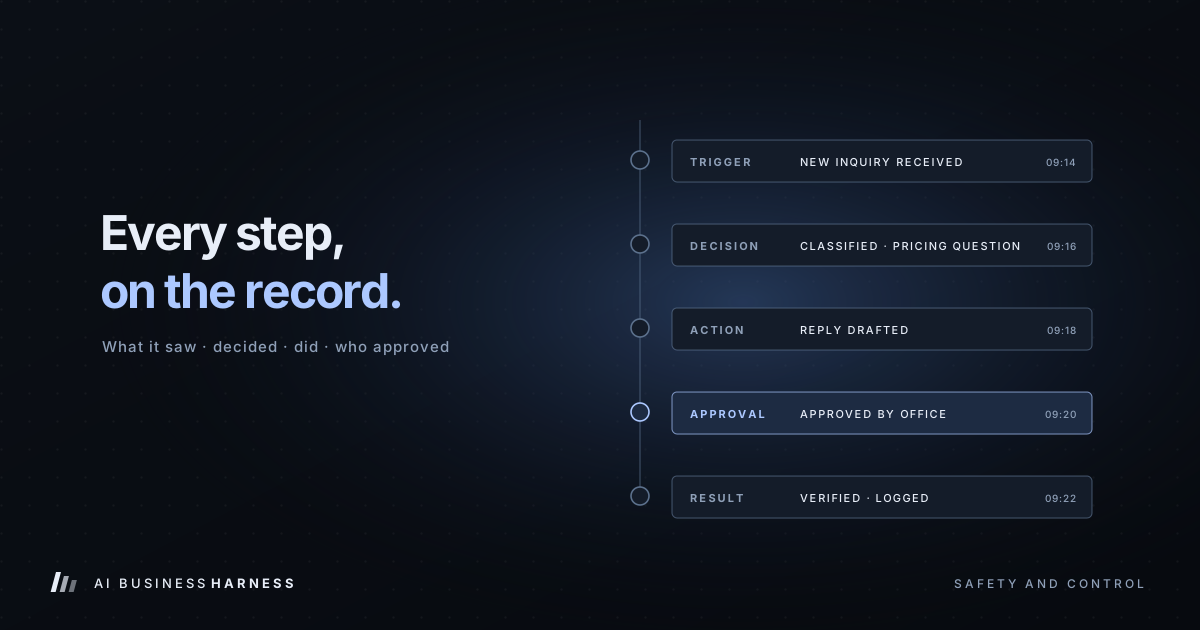
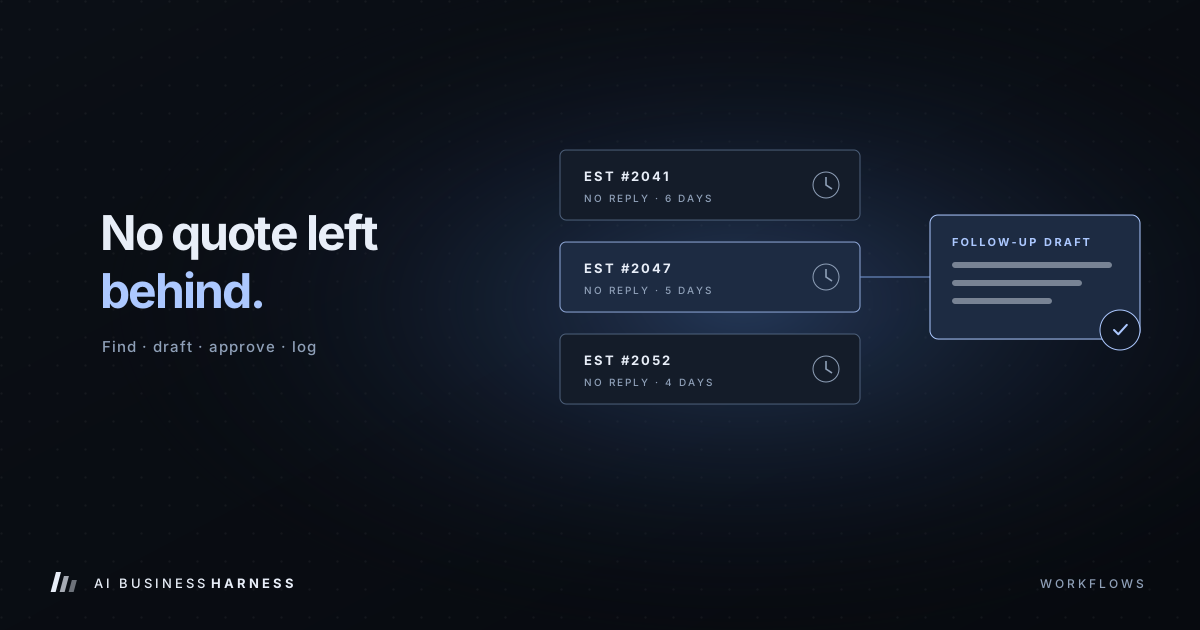
Integrations
AI Browser Automation vs. API Integrations: Which Should Your Business Use?
AI that clicks through websites like a person is impressive, and sometimes necessary. But it's not always the right tool. Here's how to decide between it and an API.
AI systems can now use a computer the way you do: open a browser, log in, click through screens, read what's there and type into forms. For software that has no other way in, that's a genuine breakthrough.
It's also easy to overuse. Here's how browser and desktop automation compare to API integrations, and how to decide which one a workflow deserves.
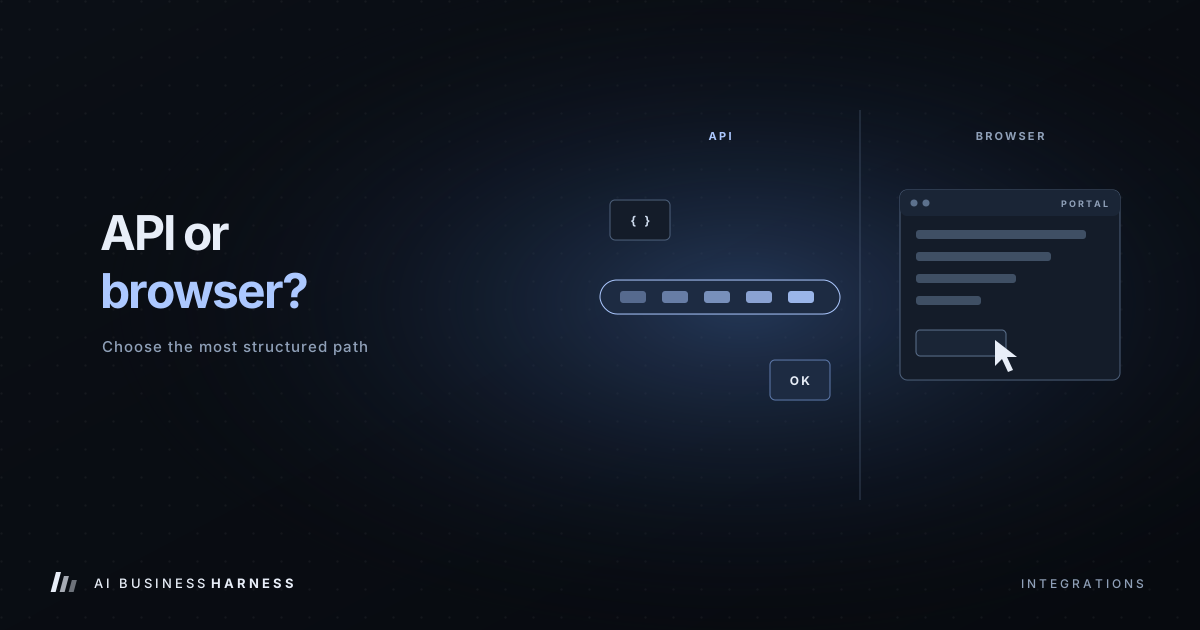
The difference in one picture
An API integration is like calling a business's direct line and asking for exactly the record you need. You get a structured answer in a predictable format, every time.
Browser automation is like sending someone to the front desk in person. They can get things done even when there's no phone line, but they have to find the right counter, wait in line, read the forms and notice when the layout has changed.
Side by side
| API integration | Browser / desktop automation | |
|---|---|---|
| Reliability | High; built for programs | Lower; built for people, can break when screens change |
| Speed | Fast | Slower; waits for pages to load |
| Setup | Needs API access and some development | Can work with almost any web or desktop tool |
| Permissions | Usually fine-grained and scoped | Often whatever the logged-in user can do |
| Verification | Structured responses are easy to check | Must confirm results by reading the screen |
| Maintenance | Low; APIs change rarely and with notice | Higher; UI redesigns can require fixes |
| Best for | Core, high-volume workflows | Gaps where no API or export exists |
When browser automation is the right call
- Legacy or niche software with no API, like an old industry portal or a supplier's ordering site.
- Low-volume, high-tedium tasks, such as a weekly report that requires logging into a site and downloading a file.
- Bridging while a better option arrives, for example while waiting for a vendor to grant API access.
- Read-only lookups, such as checking a status page or confirming information is displayed correctly.
When to insist on an API
- High-volume work. Hundreds of records a day magnifies every small failure.
- Anything touching money or customer records. You want structured, verifiable changes.
- Time-sensitive tasks. Page loads and retries add delay.
- When the API already exists. Choosing browser automation over a working API trades reliability for nothing.
Making browser automation safe
If a workflow genuinely needs it, treat it as the higher-risk option it is:
- Use a dedicated login with the narrowest permissions the site allows. Never an owner or admin account.
- Verify every important action by reading the result back from the screen: the confirmation message, the updated value, the new record.
- Define stop conditions. If the page looks unexpected, a login fails or a value doesn't match, the workflow stops and alerts a person instead of improvising.
- Keep humans on irreversible steps. Submitting an order or a form should require approval.
- Record screenshots or logs of each run, so failures can be diagnosed.
- Test on non-production accounts or sample data first.
- Watch for instructions on the page. Websites can contain text aimed at AI systems. The workflow should treat page content as information, never as commands.
A hybrid is common, and healthy
Many real workflows mix both. A business might pull customer data through its CRM's API, draft a message with AI, and use a carefully controlled browser step only to submit a form on an old supplier portal that has no other way in. Each part uses the most structured method available.
The takeaway
Browser and desktop automation is a valuable tool for filling gaps, not a default. Start every workflow by looking for an API, an existing connector or a data export. Reach for browser automation when those don't exist, and when you do, give it tighter permissions, more verification and more human review.